
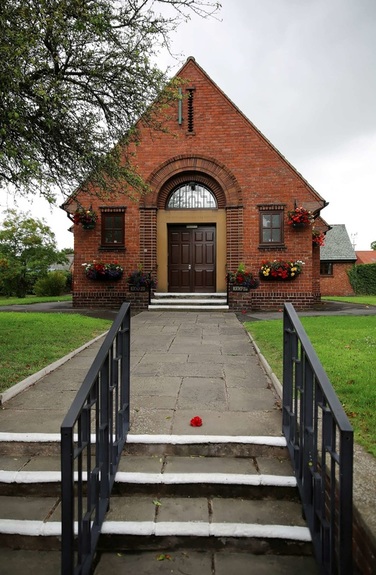
Hiring the HallThe Hall can be hired on a one-off or regular basis, by the hour or for a whole day. To see our facilities, please click here to visit our About page. Typically, hire costs £12.50 per hour but please contact us to discuss the costs of your particular booking. For parties we book minimum four hours £50 plus £12.50 for each additional hour or part of an hour. Other bookings:- Half a day (up to four hours) £50 Full day (up to eight hours) £100 We send an invoice to users explaining how to pay (Preferred method of payment is by bank transfer) Occasional bookings must be paid for on or before the day of the event. For children's parties follow this link Please see our on-line calendar at the bottom of this page to check availability. Contact us on ebmhnorthop@gmail.com or on 01352 840 209 Complete the booking confirmation form on line here Or you can download a general booking form here: As Word Doc Link Terms and Conditions of Hire |
|
When is the Hall available?
Use the calendar below to see when the hall is free for you to book. Use the arrows in the top left to move from week to week or the tabs in the top right to see a whole month at once or a list of all bookings.
